06 of April of 2026
PPC Dashboard in Looker Studio: Track ROAS Without the Spreadsheet

Isaac Correa
Looker Studio Templates
Data Integration & Sources
SEO & Marketing Dashboards
Most PPC managers spend more time building reports than optimizing campaigns. A Looker Studio dashboard connected to Google Ads changes that.
You've spent the week optimizing bids, testing creatives, and adjusting targeting. Then Friday arrives and you spend three hours building the same report you built last month. There's a better way.
The PPC Reporting Problem Nobody Talks About Enough
Ask any PPC manager what the worst part of their job is. Most of them won't say bidding strategy or campaign structure. They'll say reporting.
Not because they dislike data. Because the process is broken.
You log into Google Ads. You export campaign performance. You open the spreadsheet you've been maintaining for months. You paste the numbers, update the formulas, fix the ROAS calculation that broke again, format the table, take a screenshot, drop it into slides, write two paragraphs, and send it.
Every single month. For every single client.
According to research across agency workflows, agencies spend 3 to 5 hours per client per month on this exact process — not on analysis, not on optimization, on mechanics. For a PPC agency managing ten clients, that's up to fifty hours a month building documents instead of improving campaigns.
The irony is brutal. The work that would actually justify the retainer — finding the campaigns with broken ROAS, catching the keywords burning budget, spotting the audiences converting at half the expected CPA — gets squeezed into whatever time is left after the reporting is done.
A live Looker Studio dashboard connected directly to Google Ads changes the entire dynamic.
What a PPC Dashboard in Looker Studio Actually Does
Before getting into metrics and setup, it's worth being precise about what makes a Looker Studio PPC dashboard different from exporting a CSV.
It's not a prettier spreadsheet. It's a live connection.
When you connect Google Ads to Looker Studio using the native connector — which is free and built directly into the platform — your campaign data flows in automatically. ROAS, spend, conversions, CPA, impression share. All of it. Updated continuously.
No exports. No formulas. No version control nightmares. The dashboard reflects the actual state of your campaigns right now, not what they looked like when you last touched a spreadsheet.
Clients can open it at any time and see current numbers. You can schedule automatic delivery as a PDF every Monday morning or on the first day of every month. And when a campaign changes, the dashboard changes with it.
That's the shift. From a document you build to a window that's always open.
The Metrics That Belong in Every PPC Dashboard
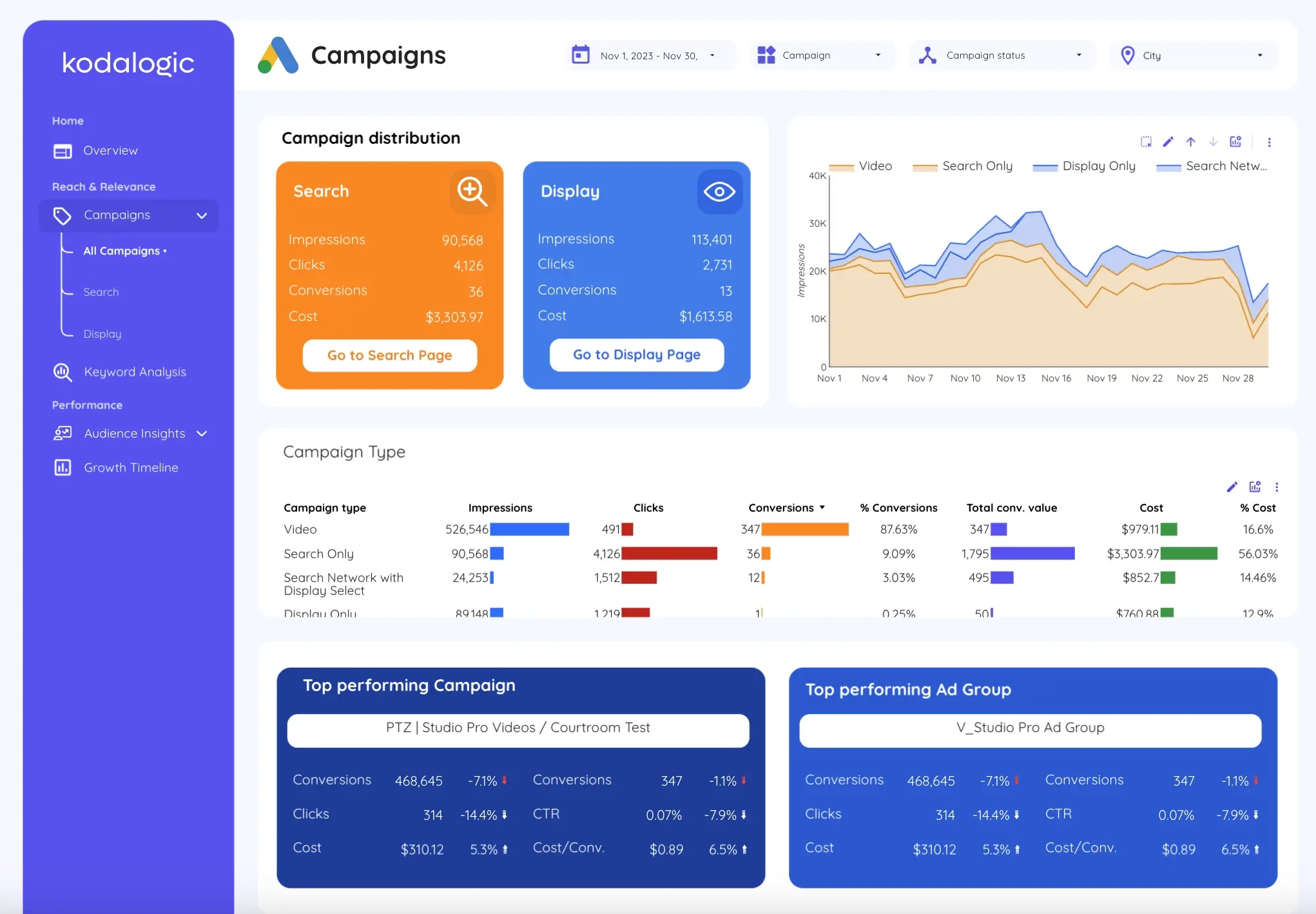
Not all PPC metrics deserve equal space on a dashboard. Some look impressive in a spreadsheet and mean almost nothing for decision-making. Others look boring and tell you everything.
Here's the distinction that matters: metrics that describe what happened versus metrics that tell you what to do next.
ROAS — Return on Ad Spend is the headline number. Revenue generated divided by ad spend. A ROAS of 4:1 means four dollars in revenue for every dollar spent on advertising. According to AgencyAnalytics, a ROAS of 4:1 or higher is the general benchmark for a healthy campaign — though this varies significantly by industry, margin structure, and business model. ROAS doesn't just sit at the top of the dashboard because it looks important. It sits there because it's the number clients use to decide whether to increase budget, hold steady, or pull back.
Cost Per Acquisition (CPA) tells you what you're paying to get one conversion. Unlike ROAS, which measures return, CPA measures efficiency. A campaign can have acceptable ROAS but unsustainable CPA if conversion values are low. Both numbers together give you the full picture.
Impression Share shows what percentage of available impressions your ads are actually capturing. If impression share is low and ROAS is healthy, there's budget opportunity being missed. If impression share is high and ROAS is declining, you're likely competing in a space that's becoming more expensive without a corresponding return.
Spend vs budget pacing is where dashboards earn their keep on a day-to-day basis. A campaign that's burned 80% of its monthly budget by the 15th is a client conversation waiting to happen. Seeing it visually, in real time, means you have that conversation proactively instead of reactively.
CTR and Quality Score reveal the relationship between your ad copy and user intent. Low CTR on high-impression keywords means your message isn't connecting. Low Quality Score drives up CPC without improving position. These are the levers that improve efficiency before you touch bids.
Conversion rate by campaign and ad group surfaces the performance gaps that aggregate numbers hide. An account-level conversion rate of 4% might look fine. A campaign-level view might show one campaign converting at 8% and another at 0.5% — with equal budget allocation. That's the insight that changes how you allocate spend.
What to Leave Out
Impressions alone — without CTR context — tell you almost nothing useful for a client conversation. High impressions with low CTR is a problem. High impressions with high CTR is good news. Without the ratio, the number is just noise.
Average position is gone from Google Ads as a metric. If you're still tracking it from old spreadsheets, remove it. It no longer exists in the data.
Bounce rate from GA4 blended into a PPC dashboard often creates more confusion than clarity. A campaign driving traffic to a landing page that answers the query immediately might have a 90% bounce rate and a 12% conversion rate. Those numbers look contradictory until you understand the context. Unless you have the space to explain it properly, leave it for a separate conversation.
Vanity metrics without context — impression share without CTR, clicks without conversions, spend without ROAS. Showing these in isolation implies you don't know which ones actually matter. Clients notice faster than you think, and it undermines everything else in the report.
The goal of a PPC dashboard isn't to show everything you track. It's to show what the client needs to act.
How to Connect Google Ads to Looker Studio
The setup is simpler than most PPC managers expect the first time they do it.
Open Looker Studio and click Create in the top left. Select Report, then Add data. In the connector search, type "Google Ads." Select the native connector — no third-party tools, no monthly fees, no API configuration required.
Sign in with your Google account, select the Google Ads account you want to connect, and click Connect. If you manage multiple accounts under a Manager (MCC) account, the native connector supports up to 50 sub-accounts per data source, which covers most agency setups without additional tooling.
Once connected, your Google Ads dimensions and metrics appear in the field panel on the right. From here you drag fields into charts, tables, and scorecards exactly like any other data source in Looker Studio.
ROAS doesn't appear as a pre-built field — you build it as a calculated field. In the data source editor, click Add a field, name it "ROAS", and enter the formula: Conversion Value / Cost. Set the type to Number. That field is now available across every chart in your report and updates automatically with your live campaign data.
For CPA: Cost / Conversions. Same process.
According to a survey of PPC managers, 65% reported fewer errors in campaign execution after implementing automation tools — and calculated fields in Looker Studio are exactly that kind of automation: you define the logic once, and it never breaks again.
The Dashboard Structure That Actually Works
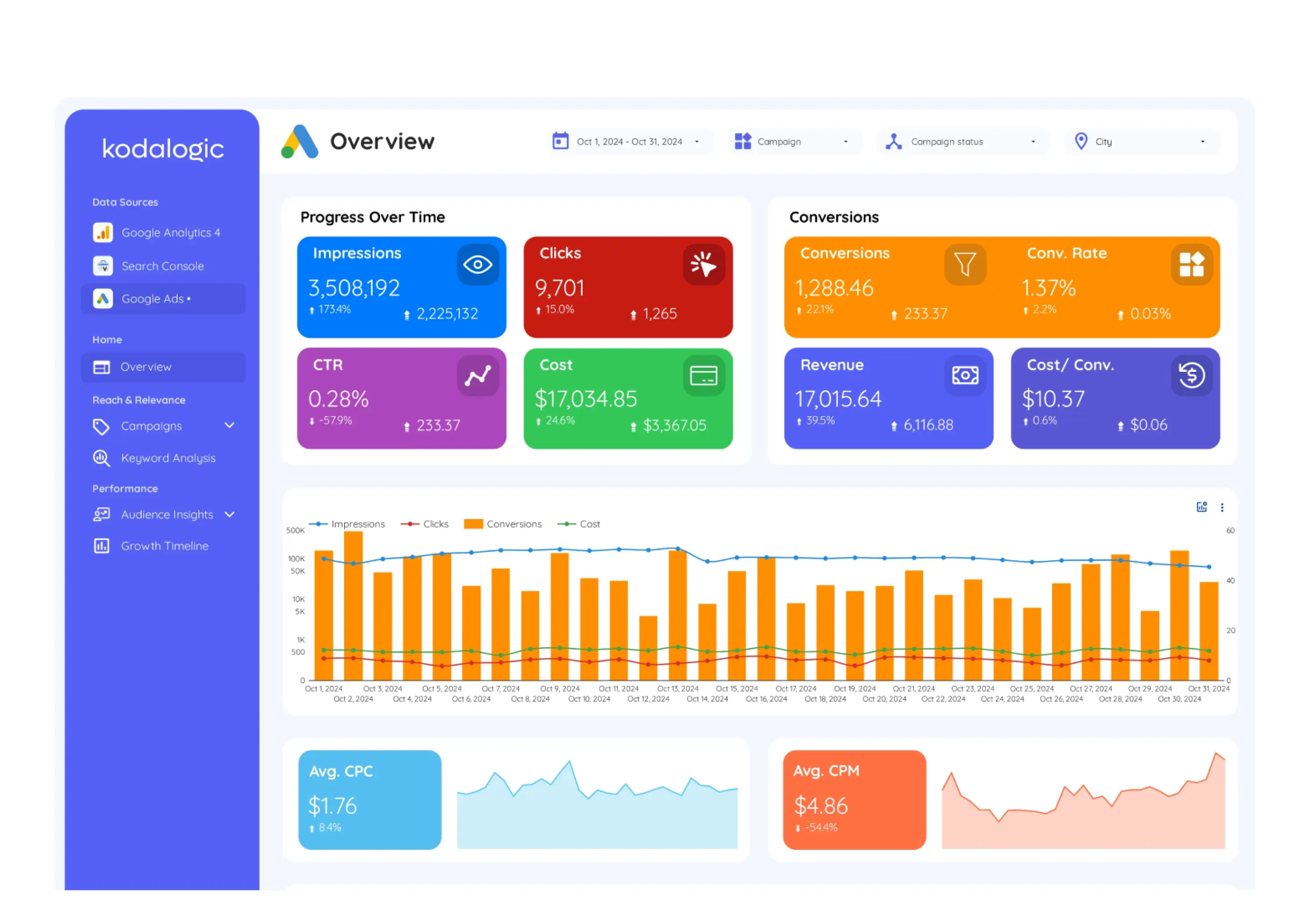
Structure determines whether a client opens the dashboard or ignores it. The layout that works consistently across different account sizes and industries follows a simple hierarchy.
Top section: four headline numbers. Total spend this period versus last period. Total conversions. ROAS. CPA. These four answer the only question clients ask in the first thirty seconds: is this working and is it getting better or worse?
Middle section: trends. Spend versus conversions over time, plotted on the same chart with dual axes. This visualization makes the relationship between investment and output visible at a glance. A month where spend held steady but conversions fell is immediately obvious. A month where both climbed together confirms momentum.
Campaign breakdown table. Every campaign, with spend, conversions, CPA, ROAS, and impression share. Sorted by spend descending by default. This is where the conversations happen — which campaigns are over-allocated relative to their return, which are underfunded relative to their efficiency.
An e-commerce client selling sneakers, for example, might notice one campaign driving conversions at $15 CPA, well below their $25 target. That's the campaign to scale. The one converting at $60 CPA with the same budget allocation is the one to pause. Seeing both in the same table, sorted by spend, makes that decision take thirty seconds instead of thirty minutes.
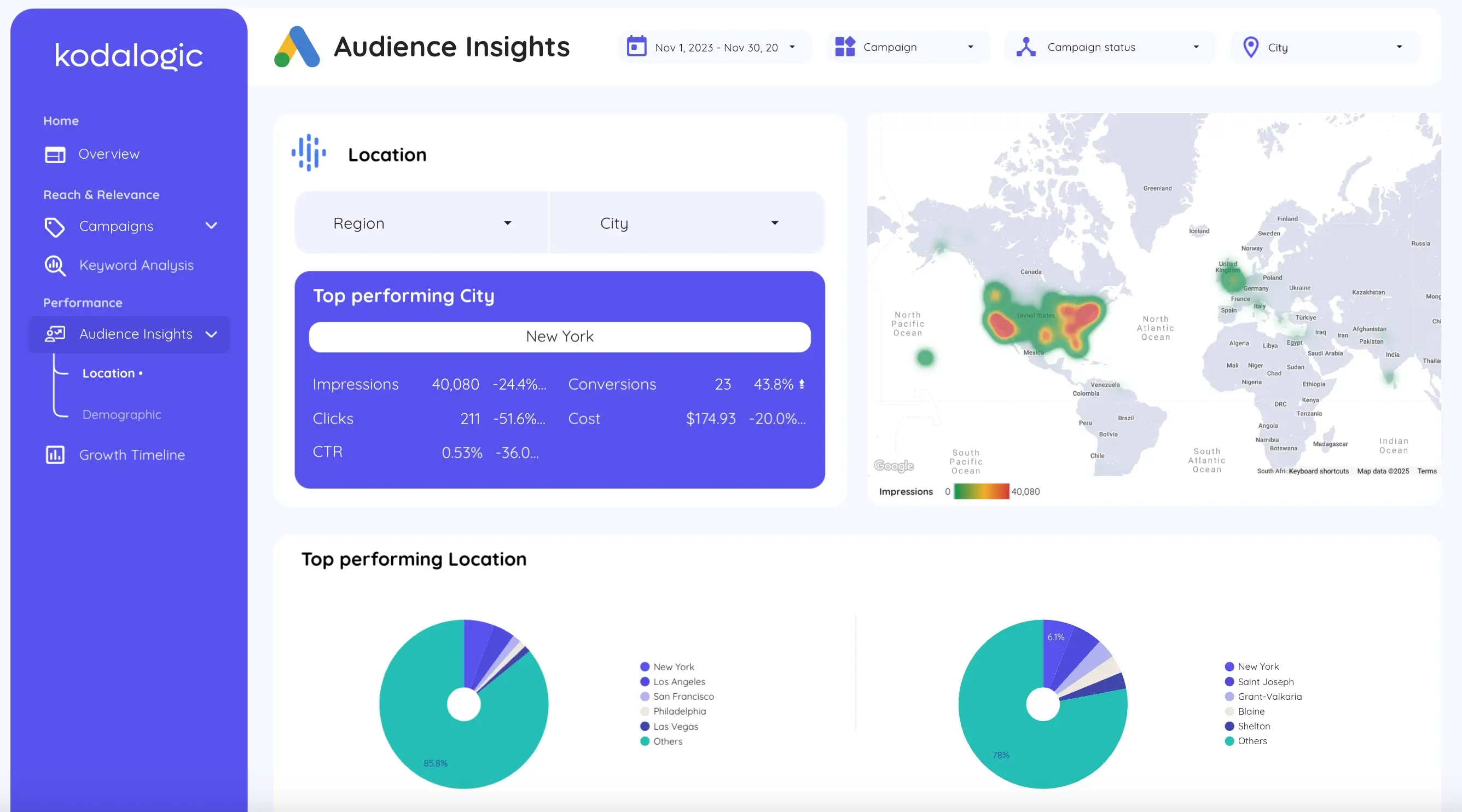
Device and geographic segmentation. Often the most actionable section for optimization. A PPC manager who spots mobile CPA running 40% higher than desktop has an immediate bid adjustment to make. A campaign converting at 3x the account average in one city has a budget reallocation case to make.
One priority flag at the bottom. The highest-spend campaign with ROAS below target. The keyword cluster with the most wasted spend. Whatever is most urgent this month, surfaced explicitly — not buried in a table, called out directly.
For more on building the hierarchy and interactive filters inside Looker Studio, our post on 15 tips for smarter dashboards covers the setup in detail.
Connecting PPC and SEO Data in the Same Report
One of the most underused capabilities of Looker Studio for performance teams is blending paid and organic data in a single dashboard.
If you're already tracking organic performance through Search Console and GA4 — as we covered in our post on SEO reporting dashboards — adding a Google Ads connection to the same report creates something genuinely useful: a unified view of where every conversion came from.
Organic traffic shows you what's working for free. Paid traffic shows you what you're funding. When you see both in the same report, budget allocation decisions become much clearer. A keyword driving strong organic conversions probably doesn't need aggressive paid bidding. A keyword with high commercial intent and weak organic ranking is a clear candidate for paid investment.
This cross-channel view is where Looker Studio's free tier genuinely outperforms more expensive dedicated PPC tools for teams that also manage SEO.
Scheduling Reports So You Never Send a Manual PDF Again
Once the dashboard is built, scheduling delivery takes under ten minutes.
Click Share in the top right, select Schedule delivery, add your recipients, choose your frequency — weekly, monthly, or custom — and click Save.
The report goes out automatically as a PDF at every scheduled interval, with live data from the moment of delivery. It includes a link back to the interactive version where clients can filter by date range, drill into specific campaigns, or check a number between report cycles.
You never touch it again unless you want to change something.
For the full walkthrough including permission settings for multi-client setups, our guide on how to schedule a dashboard in Looker Studio for email delivery covers every step.
Starting Without a Blank Canvas
Building a well-structured Google Ads dashboard in Looker Studio from scratch takes longer than most people expect. Getting the ROAS calculated fields right, setting up the spend-versus-conversions dual-axis chart, configuring date comparisons so the period-over-period deltas work correctly — it's real work the first time.
The Kodalogic Google Ads dashboard template is already structured around the framework above. Connect your account, and the metrics populate automatically. ROAS is already calculated. The campaign breakdown table is already sorted by spend. The trend charts are already configured with comparison periods.
You're not starting from a blank canvas. You're starting from something that works — and spending your time on the campaigns, not the container.