The "Looker Studio cannot connect to your dataset" error has five common causes. Each has a specific fix. Work through them in order: most users find the solution in the first two.
Why Does Looker Studio Fail to Connect?
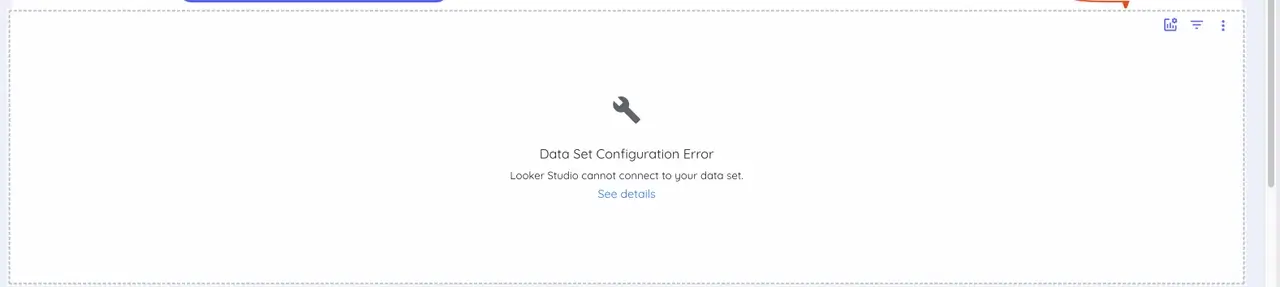
You are trying to analyze data or present a dashboard and Looker Studio shows: "Cannot connect to your dataset." Some users see the variation "Looker Studio cannot connect to data set" or a data set configuration error; same underlying causes, same fixes.
Before spending an hour debugging, work through these five causes in order. Most users find the fix in the first two.
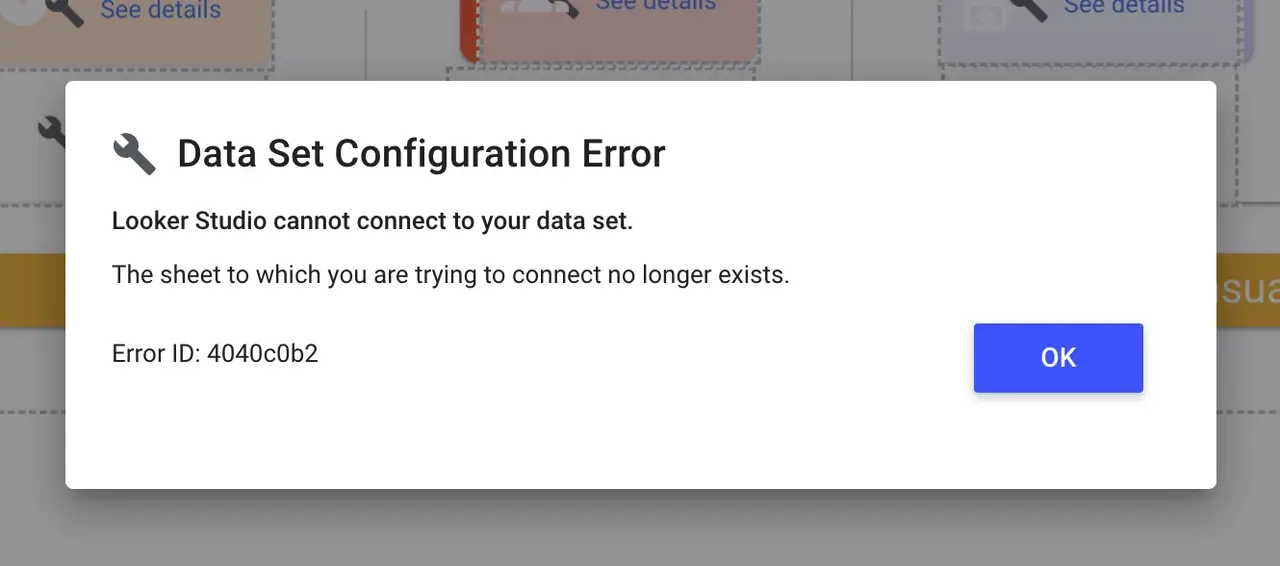
| Cause | Most common scenario |
|---|---|
| Permission problem | Someone changed access to the underlying data source |
| Missing or disconnected data source | Report uses a placeholder or the source was deleted |
| Schema change | A column was renamed, removed, or reformatted |
| Data set configuration error | A field has the wrong data type assigned |
| GA4 API quota exceeded | Too many dashboard loads are hitting the API limit |
Fix 1: Verify Permissions (Most Common)
Looker Studio pulls data using the credentials of whoever connected the data source. If that person's access was changed, or if you are viewing someone else's report, the connection fails.
For Google Sheets
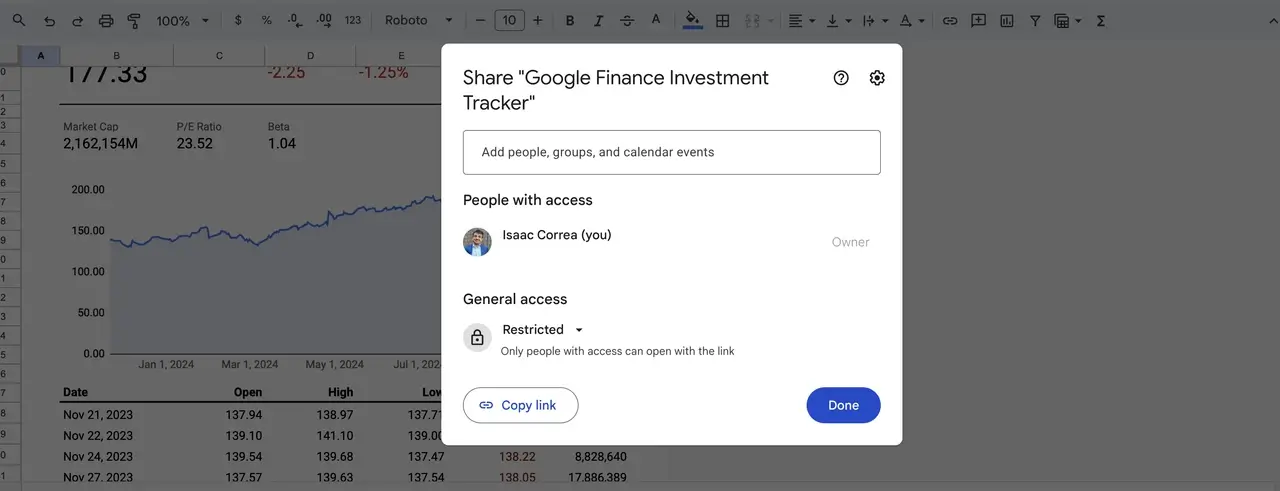
Open the Google Sheet and verify it is shared with the Google account being used in Looker Studio. Sharing must be at least Viewer level. Go to File → Share → Share with people and groups and confirm the correct email has access.
For GA4 or BigQuery
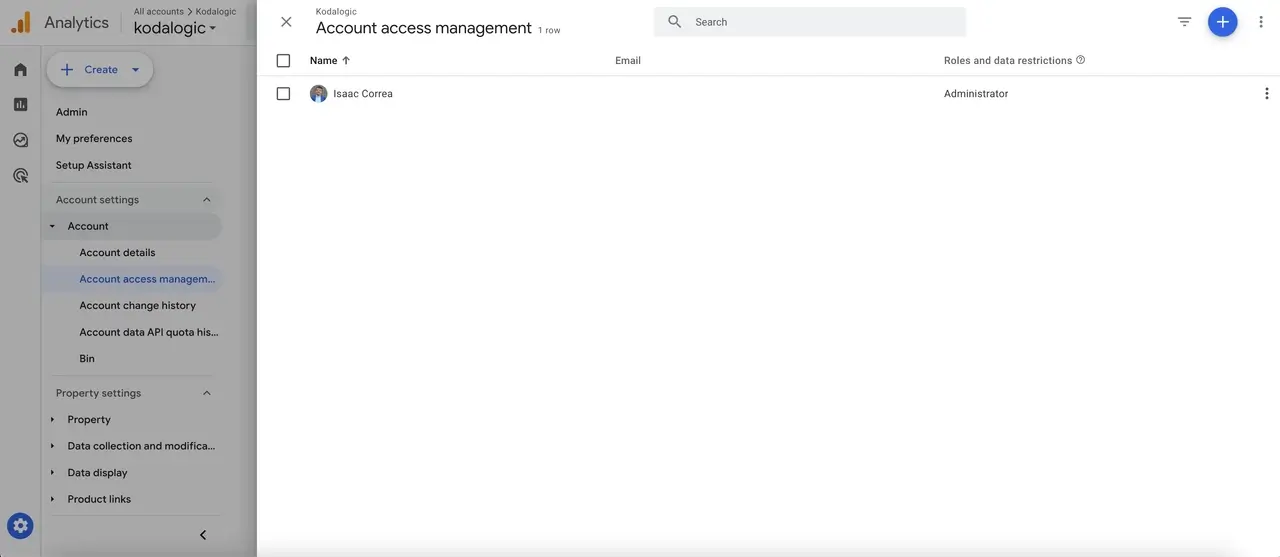
Confirm that your service account has the correct roles assigned. In GA4, go to Admin → Account → Account Access Management and verify the Google account connected to Looker Studio has at least Viewer access.
Switch to Owner's Credentials
Go to Resource → Manage Added Data Sources → Edit → Data Credentials and select Owner's Credentials. This means all viewers of the report use the data source owner's permissions: preventing the no data set access error when individual viewers do not have direct access to the underlying data.
Pro Tip: Permissions mismatches are the number one cause of connection issues. Check this first before anything else.
Fix 2: Reconnect or Reassign the Data Source
If the data source was deleted, renamed. Moved, or if you applied a template and have not yet connected your own data, Looker Studio cannot find what it is looking for.
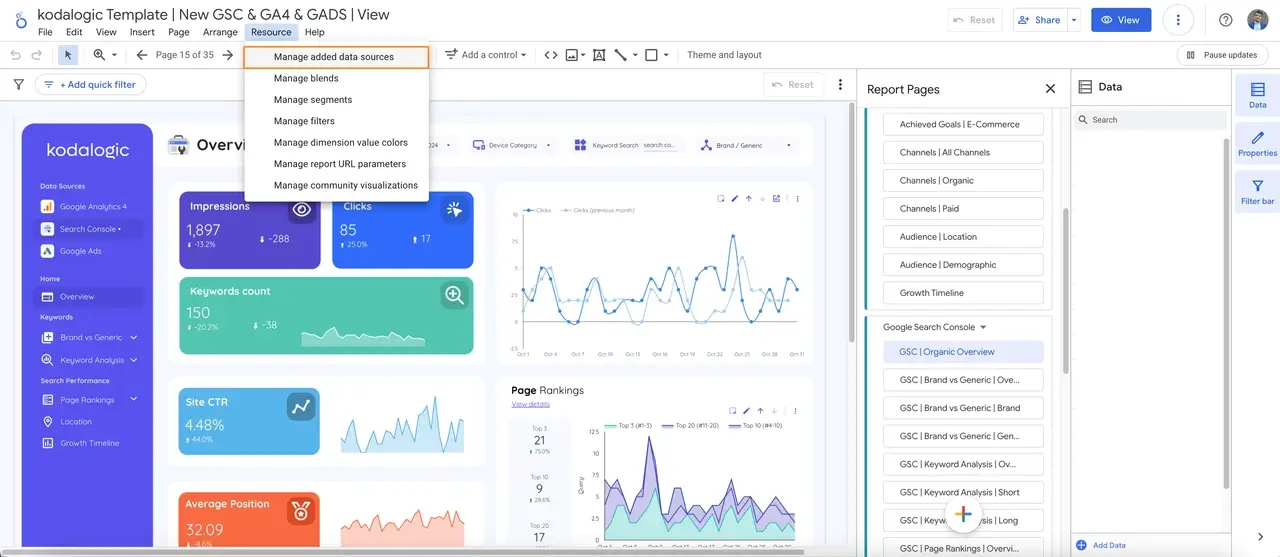
Go to Resource → Manage Added Data Sources. If a source shows a warning icon or is marked as broken:
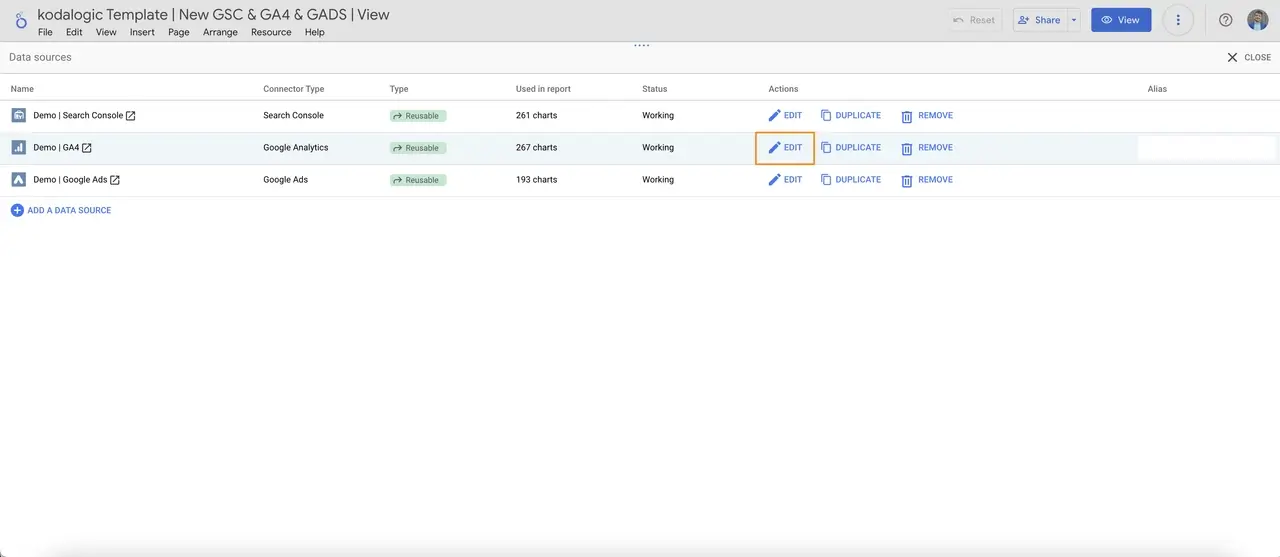
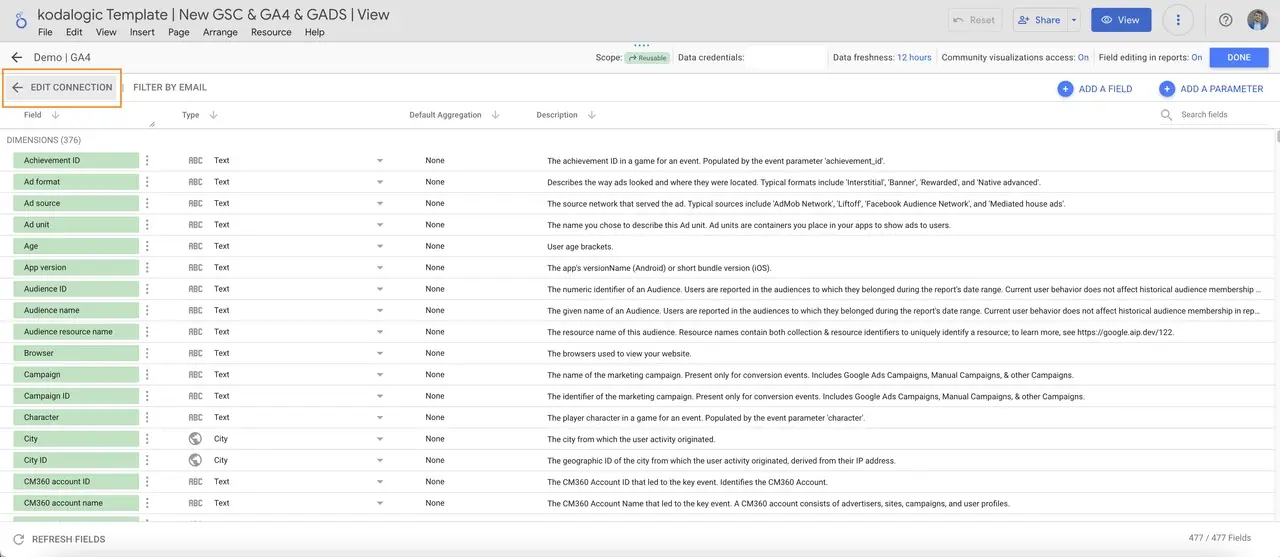
Click Edit and review credentials, API keys, and dataset paths.
If the source was deleted entirely, click Add a Data Source and create a new connection. For templates, select your own GA4 property, Google Ads account, or Search Console property in place of the template's placeholder.
| Step | Action |
|---|---|
| Navigate to Resources | Open your Looker Studio dashboard and access "Manage Added Data Sources" |
| Edit Connection Settings | Update expired credentials, correct dataset paths, or fix API key errors |
| Reconnect the Data Source | Click "Reconnect" to re-establish the link between Looker Studio and your data |
Fix 3: Fix Google Sheets Formatting
Looker Studio is sensitive to how Google Sheets data is structured. Formatting errors are a frequent cause of connection failures.
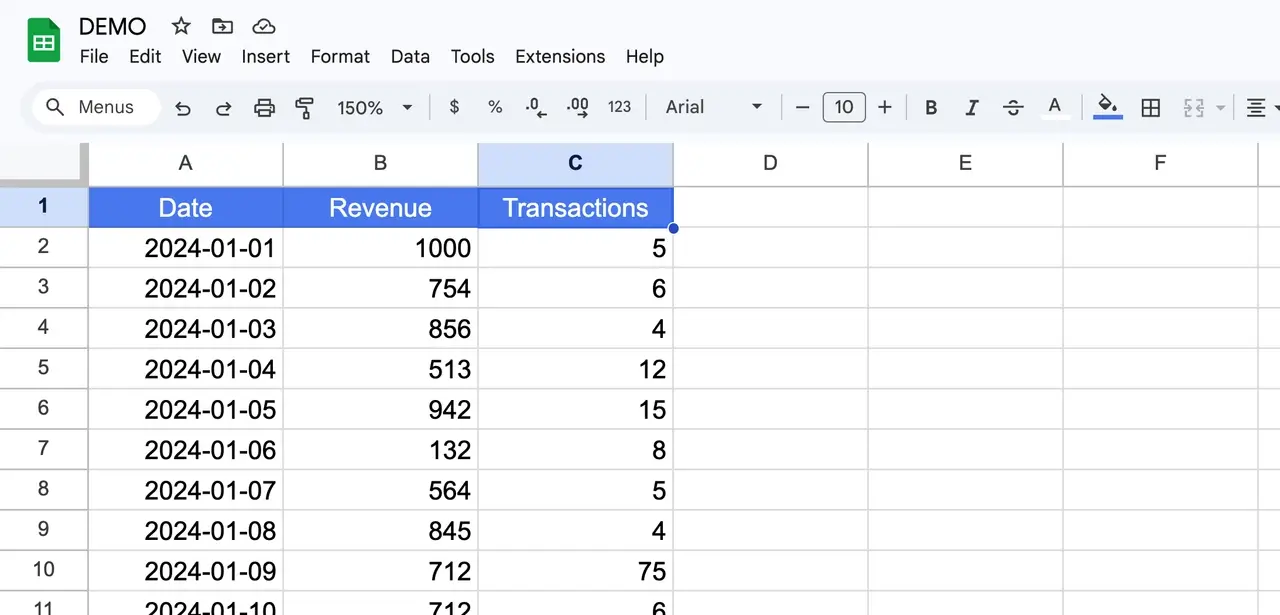
No double titles. The first row must contain only column headers. The second row must begin actual data values.
Correct:
| Date | Revenue | Transactions |
|---|---|---|
| 2024-01-01 | 1000 | 5 |
Incorrect (causes errors):
| Date | Revenue |
|---|---|
| Date | Revenue |
| 2024-01-01 | 1000 |
No empty rows or columns between data. Gaps cause Looker Studio to misinterpret the data structure.
Dates in a vertical column. Time data must be in a single column, one date per row. Horizontal date layouts are one of the most common mistakes when working with Sheets.
Changes take 15 minutes to update. Any edits to your Google Sheet take about 15 minutes to appear in Looker Studio. Wait before assuming the fix did not work.
The correct structure looks like this: each row is one date, each column is one metric:
| Date | Revenue ($) | Transactions | Users |
|---|---|---|---|
| 19 November | 1000 | 10 | 500 |
| 20 November | 1200 | 12 | 550 |
| 21 November | 1500 | 15 | 600 |
Pro Tip: Kodalogic's templates enforce proper formatting for Google Sheets, avoiding these common pitfalls entirely.
Fix 4: Resolve the Data Set Configuration Error
When Looker Studio shows a data set configuration error, it means a field has the wrong data type assigned. Or a calculated field references a field that no longer exists.
Go to Resource → Manage Added Data Sources → Edit and review every field. Check that:
- Numeric fields are set to Number or Currency, not Text
- Date fields are set to Date or Date & Time
- Calculated fields reference fields that still exist in the data source
For Google Sheets: confirm that date columns are formatted as dates in the sheet itself. Dates stored as plain text (even if they look like dates) will cause configuration errors in Looker Studio.
After making changes: Resource → Manage Added Data Sources → Edit → Refresh Fields → click Apply to sync the schema.
Fix 5: GA4 API Quota Exceeded
If the error appears intermittently, working sometimes but failing during busy periods or after mass report delivery, you have hit GA4's API quota limits.
GA4 limits API calls per property per hour. Dashboards with many charts, many simultaneous viewers, or scheduled email delivery to large groups can exhaust the quota.
Reduce concurrent requests: Split your dashboard across multiple pages instead of putting all charts on one page. Each page load triggers fewer simultaneous API calls.
Use Extract Data: For data that does not need real-time updates, go to Add Data → Extract Data. This stores a cached copy of your GA4 data that does not count against the API quota on each load.
Stagger scheduled email delivery: If you send the same report to many people simultaneously, the concurrent loads can exhaust quota. Schedule deliveries at different times.
Quick Checklist
| Symptom | Likely cause | Fix |
|---|---|---|
| Error for some users, not others | Permissions | Fix 1: check credentials |
| Error on every chart in the report | Missing data source | Fix 2: reconnect |
| Error started after editing your data | Schema change | Fix 3 or 4: reformat or refresh fields |
| Error comes and goes on its own | GA4 quota | Fix 5: reduce requests or use Extract Data |
| Error on specific charts only | Configuration error | Fix 4: check field types |
Preventing the Error Going Forward
The most common source of persistent connection errors is connecting a data source under one person's credentials and sharing it with many people. When that person changes their password, loses access, or leaves the team, every report using their credentials breaks.
The reliable setup: Use Owner's Credentials with a shared team Google account for data sources that need to stay connected regardless of personnel changes.
Simplify with Kodalogic Templates
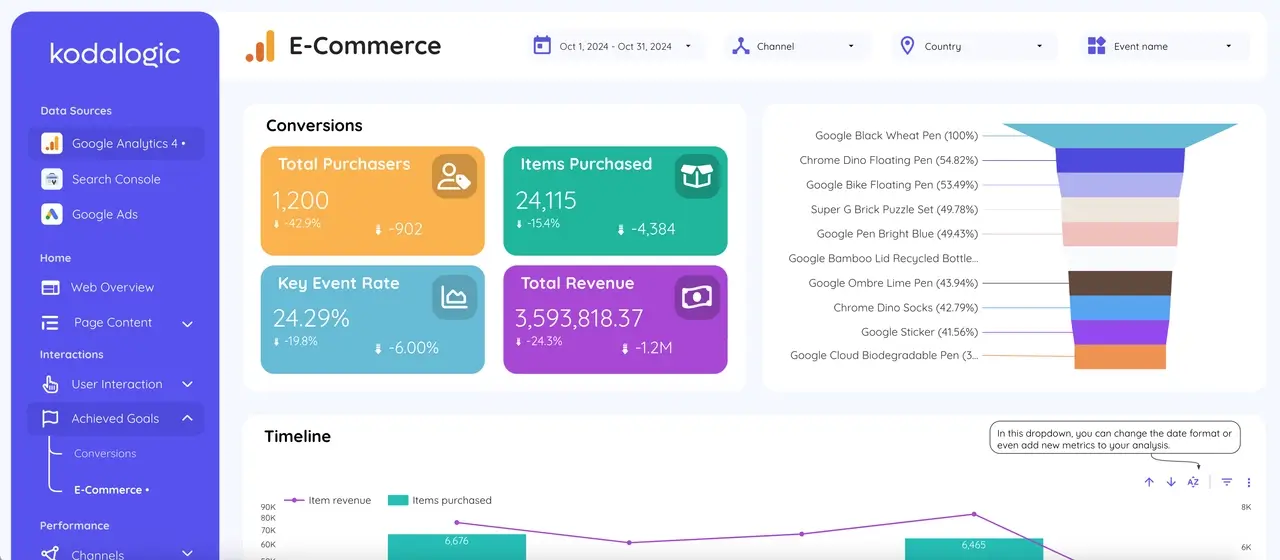
If connection issues are a recurring problem in your workflow, a properly structured Looker Studio template with tested connections removes most of the configuration risk. Our templates connect to GA4, Google Ads, and Search Console using native Google connectors: no third-party dependencies, no credentials to maintain.
| Feature | Benefit |
|---|---|
| Tested connections | Configured to work with GA4, Google Ads, and Search Console from day one |
| No middleware | Native Google connectors only: nothing to break between your data and the dashboard |
| One-time setup | Connect once, works for all future copies |
→ Browse Looker Studio Templates that connect without errors

Written by
Isaac CorreaHe runs the commercial side of Kodalogic and co-founded Hellomatik. Before that he built more than two hundred Looker Studio dashboards for clients, and collected 107 five-star reviews doing it.